
Wondering how to unlock an Android phone without a password? You’re not alone. Every day, thousands of users forget their PIN, password, or pattern lock and end up locked out of their own devices. Whether you own a Samsung, Xiaomi, OnePlus, Google Pixel, Motorola, or another Android phone, there are several safe methods to regain access. In this complete 2026 guide, you’ll learn how to unlock an Android phone without a password using official Google methods, Recovery Mode, Samsung tools, and trusted software like PassFab Android Unlock.
The good news? Being locked out doesn’t necessarily mean your phone is unusable. Depending on your device, Android version, and whether you’ve backed up your data, there are several legitimate ways to regain access.
In this guide, we’ll cover 7 safe methods to unlock an Android phone without a password, explain when each method works, discuss Factory Reset Protection (FRP), and show how tools like PassFab Android Unlock can simplify the process.
Quick Comparison Table
| Method | Keeps Data | Difficulty | Best For |
|---|---|---|---|
| PassFab Android Unlock | Sometimes (device dependent) | Easy | Most users |
| Google Find My Device | ❌ No | Easy | Google account owners |
| Samsung SmartThings Find | Sometimes | Easy | Samsung devices |
| Recovery Mode | ❌ No | Medium | Any Android phone |
| Smart Lock | ✅ Yes | Easy | Previously enabled |
| Google Account Recovery | ✅ Yes | Medium | Forgot Google password |
| Service Center | Depends | Easy | Last resort |
Why You May Need to Unlock an Android Phone Without a Password
Your Android phone is designed to protect your personal information. If someone steals your device, features like PINs, passwords, fingerprints, and Face Unlock help prevent unauthorized access.
However, the same security measures can become frustrating when:
- You forget your PIN or pattern.
- A fingerprint sensor stops recognizing your finger.
- Your child changes the screen lock.
- You purchase a used phone with FRP enabled.
- A factory reset triggers Google account verification.
- Too many incorrect attempts temporarily lock the device.
Fortunately, there are several ways to recover access.
Method 1: Unlock Android Phone Without Password Using PassFab

When you can’t remember your lock screen password and want a guided solution, PassFab Android Unlock is one of the easiest tools available.
Instead of manually searching through different tutorials for your phone model, the software walks you through the process step by step.
Key Features
- Removes PIN, password, pattern, fingerprint, and Face Unlock.
- Supports Google FRP removal on supported devices.
- Compatible with many Android brands.
- Beginner-friendly interface.
- Guided Recovery Mode instructions.
- Regular updates for newer Android versions.
Supported Brands
- Samsung
- Xiaomi
- Redmi
- POCO
- Google Pixel
- Motorola
- OnePlus
- Huawei
- Honor
- OPPO
- vivo
- Nokia
- LG
- Sony
- Realme
How to Use PassFab Android Unlock
- Download and install PassFab Android Unlock on your Windows PC.
- Open the software.
- Select Remove Screen Lock.
- Connect your Android phone with a USB cable.
- Choose your phone’s manufacturer.
- Follow the on-screen instructions to enter Recovery Mode.
- Wait while the software removes the lock.
Note: On many devices, this process will erase local data. If you have cloud backups enabled, you may be able to restore your files afterward.
Download and install PassFab Android
Method 2: Unlock Android Phone Without Password with Google Find My Device
Google’s Find My Device can remotely erase your phone if it’s linked to your Google account and connected to the internet.
Requirements
- Find My Device enabled.
- Internet connection.
- Access to your Google account.
Steps
- Visit the Find My Device website from another device.
- Sign in with your Google account.
- Select your phone.
- Choose Erase Device.
- Set up your phone again and restore any backups.
This method is ideal if you remember your Google credentials but not your screen lock.
Method 3: Unlock Android Phone Without Password Using Samsung SmartThings Find (Samsung Only)\

If you own a supported Samsung Galaxy device and have previously enabled Samsung account features, SmartThings Find may help you locate or manage your device.
Availability of remote management features varies by device model, software version, and Samsung’s current services, so check your device’s supported options before relying on this method.
Method 4: Unlock Android Phone Without Password Using Recovery Mode
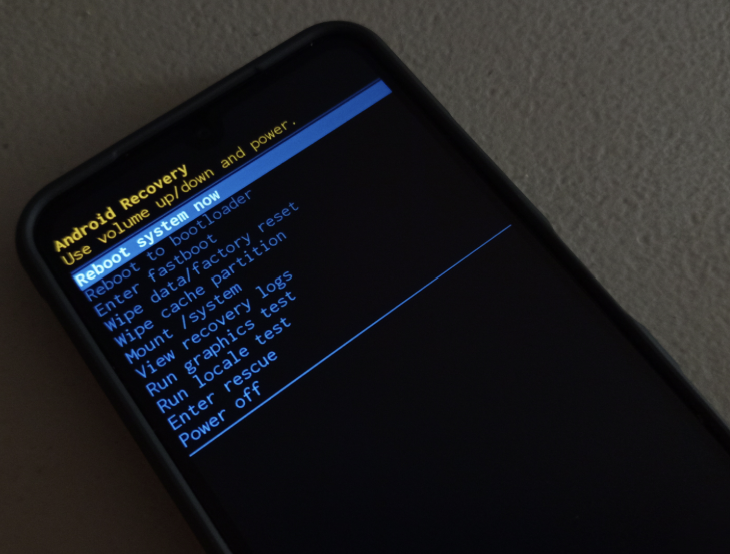
Recovery Mode is built into nearly every Android phone.
General steps:
- Turn off the device.
- Hold the Power and Volume buttons (the exact combination varies by manufacturer).
- Enter Recovery Mode.
- Select Wipe Data/Factory Reset.
- Restart the device.
After resetting, you’ll likely need to verify the Google account previously linked to the phone due to Factory Reset Protection.
Method 5: Unlock Android Phone Without Password Using Smart Lock
If you had Android Smart Lock enabled before getting locked out, your phone may unlock automatically under certain trusted conditions, such as:
- A trusted location.
- A connected Bluetooth device.
- On-body detection.
If these conditions are met, you may regain access without resetting the device.
Method 6: Unlock Android Phone Without Password Using Recover Your Google Account
If your phone requests Google account verification after a reset and you’ve forgotten your account password, try recovering your Google account first.
Once you regain access to the account, you can complete the device setup and unlock the phone legitimately.
Method 7: Visit an Authorized Service Center

If none of the above methods work, contact the manufacturer’s authorized service center. Be prepared to provide proof of ownership. They may be able to help depending on your device, warranty status, and local policies.
What Is Factory Reset Protection (FRP)?
Factory Reset Protection is a security feature introduced by Google to discourage unauthorized use of reset devices.
If someone resets your phone without first removing the linked Google account, Android will ask for that account’s credentials during setup.
This protects lost or stolen phones from being easily reused.
Can You Unlock Android Without Losing Data?
It depends on the device.
- Some Samsung devices and certain manufacturer-specific solutions may preserve data in limited cases.
- Many factory reset methods erase local data.
- If your photos, contacts, and files are backed up to Google or another cloud service, you can restore them after unlocking.
Always check whether your chosen method will erase your data before proceeding.
Is It Safe to Use Android Unlock Tools?
Reputable tools can simplify legitimate device recovery, but always:
- Download software from the developer’s official website.
- Read compatibility information for your device.
- Understand whether the process will erase data.
- Use such tools only on devices you own or are authorised to access.
Frequently Asked Questions About Unlocking Android Phones Without Passwords
Can I unlock an Android phone without a password?
Yes. Depending on your situation, you may use Google’s official recovery methods, Recovery Mode, Smart Lock, or third-party tools designed for legitimate device recovery.
Will unlocking my phone erase everything?
Some methods do, while others may not. It depends on the device model, Android version, and the method used.
Does PassFab work on Android 16?
Compatibility varies by manufacturer and security patch level. Check the latest compatibility information before purchasing.
Can I remove Google FRP?
If you own the device and have forgotten your credentials, there are legitimate recovery options. Some third-party tools also support FRP removal on compatible devices.
Final Verdict
Getting locked out of your Android phone can feel overwhelming, especially when important photos, documents, and apps are trapped behind a forgotten password. Fortunately, there are several legitimate ways to regain access.
For users who prefer official solutions, Google’s Find My Device, Google account recovery, Smart Lock, and Recovery Mode are good starting points. If you want a more guided experience with support for multiple Android brands, PassFab Android Unlock offers a beginner-friendly approach that simplifies screen lock removal and, on supported devices, assists with FRP-related situations.
Choose the method that best fits your device, understand whether it will erase your data, and always ensure you’re unlocking a phone that you own or have permission to access.
READ ALSO—Best Android Apps 2026